Best VPNs for Wi-Fi Hotspots
Public Wi-Fi keeps us connected wherever we go. Whether you’re checking messages at a café, waiting for a flight, or calling family from a hotel abroad, a free hotspot is hard to resist. But does that convenience come with the privacy you expect?
The good news is that using public Wi-Fi doesn’t automatically put your passwords and messages on display. Websites using HTTPS encrypt the information you exchange with them, even when the network itself isn’t secure. Still, you shouldn’t assume every hotspot or connection offers the same protection.
That’s where a VPN can help. It encrypts traffic between your device and the VPN server, adding a layer of privacy on shared networks. This way, it can reduce exposure to local network snooping.
Here are five providers with features worth considering for public Wi-Fi:
- ⚡ Surfshark offers encrypted connections and a kill switch that blocks internet traffic if your VPN connection drops. Enable it in the settings for extra protection when a hotspot connection becomes unstable.
- NordVPN helps keep your traffic protected with VPN encryption and a kill switch. The kill switch’s options and behavior vary by operating system, so check your device's settings before connecting.
- ExpressVPN combines encrypted browsing with an internet kill switch. Its auto-connect feature can also activate the VPN when you join an untrusted network, helping take one task off your travel checklist.
- CyberGhost offers Wi-Fi protection that can automatically start the VPN when you join a network. Its kill switch helps prevent traffic from leaving the encrypted connection if the VPN drops.
- PIA includes a kill switch and MACE, a DNS-based blocker that helps filter known advertising, tracking, and malicious domains. These features add useful safeguards alongside its VPN connection.
Public Wi-Fi makes it easy to stay online away from home. A VPN can make that connection more private, while HTTPS remains important for protecting the information you send to websites. The two work together – not as substitutes for one another.
Read on to learn how a VPN works on public Wi-Fi, what it protects, and where its limits lie.
What problems you might face while using an unprotected Wi-Fi hotspot
Does connecting to free Wi-Fi mean someone nearby can immediately steal your passwords? No. Public Wi-Fi is generally safer than it used to be because most websites now use HTTPS, which encrypts information traveling between your browser and the website. Someone sharing the network cannot simply read those protected messages or login details.
But an encrypted connection doesn’t protect you from everything. A fake website can use HTTPS, too. If you enter your password on a convincing imitation of your bank’s website, encryption delivers that password securely – to the scammer running it.
The network itself also deserves attention. A hotspot with a familiar-looking name may not belong to the café or hotel you’re visiting. And if your device supports file sharing, you could share folders with other people on the same network. The risks are real, but understanding them is more useful than assuming every hotspot is a trap.
5 rules to follow before connecting to public Wi-Fi
A few sensible precautions can make a difference. These habits remain important even when you use a VPN:
- Verify the hotspot before joining. Ask staff for the exact network name rather than choosing the first connection that looks right. Criminals can set up lookalike hotspots to attract unsuspecting users. Turn off automatic connections to open networks so your device doesn’t join one without your knowledge.
- Turn off file sharing. Shared folders that are convenient at home shouldn’t be available to strangers at an airport. Disable unnecessary file and printer sharing, and use your device’s public-network settings where available.
- Check the connection and the website address. Use HTTPS when signing in, shopping, or entering personal information. Don’t bypass certificate warnings, and remember that an encrypted connection doesn’t prove a website is trustworthy. Check that you’re on the genuine site before entering your details.
- Keep your device and accounts protected. Install updates for your operating system, browser, and security software. Use strong, unique passwords and enable two-factor authentication wherever it’s available. These protections matter on every connection, not just public Wi-Fi.
- Use a VPN for an additional layer of network privacy. A VPN encrypts traffic between your device and the VPN server, helping protect it from people monitoring the local network. Connect before starting sensitive activities, but don’t treat it as a replacement for HTTPS, updates, or careful browsing.
What are the main public Wi-Fi security risks?
Public Wi-Fi risks aren’t all the same. Some involve the connection, while others depend on unsafe settings or being tricked into handing over information.
Fake hotspots
An attacker can create a network with a name that resembles a legitimate hotspot. Connecting puts your traffic through a network they control, but it does not automatically let them decrypt properly secured HTTPS connections. Verifying the hotspot and respecting browser warnings remain important safeguards.
Interception of unencrypted traffic
Information sent through plain HTTP or another unencrypted connection may be visible to someone monitoring the network. This can expose sensitive information if the service transmits it unencrypted. Properly configured HTTPS protects the contents of your web connection against this kind of snooping and tampering.
Exposed files and folders
Someone doesn’t need to “crack” your entire device if you’ve unintentionally made files available through network sharing. Open shared folders can put documents, photos, and other personal files within reach of strangers on the same network. Disabling sharing closes off that route.
Phishing and fake websites
A convincing login page can be more dangerous than an unencrypted connection. Scammers may use encrypted websites to collect account passwords, contact details, or payment information. Neither HTTPS nor a VPN makes the person operating a website trustworthy.
Visibility into your browsing activity
HTTPS protects page contents, passwords, and messages, but it doesn’t hide every detail of your connection. A network operator may still see the IP addresses you connect to and, in some circumstances, the domain names you visit, along with connection timing and data volumes. That’s different from being able to read the pages themselves.
How to improve your protection on public Wi-Fi
A VPN can add a useful layer of privacy when you connect to a shared hotspot. It creates an encrypted tunnel between your device and a VPN server, making it harder for someone monitoring the local network to inspect the traffic passing through it.
But where does that protection end? At the VPN server – not necessarily at the website you’re visiting. If you open a plain HTTP website, the connection beyond the VPN server may remain unencrypted. HTTPS protects information between your browser and the website, so it remains important even with a VPN switched on.
Think of the two as partners: a VPN helps shield your activity from the local network, while HTTPS protects your connection to individual websites. Neither makes a fake website trustworthy nor guarantees that everything you do online is safe.
Why use a VPN for Wi-Fi hotspots?
A VPN can be useful when you want more privacy from a network you don’t control. At a café, hotel, or airport, it can help you:
- Keep browsing destinations more private. A correctly configured VPN routes traffic through its encrypted tunnel, limiting what the hotspot operator can learn about the websites you access. The operator can generally still see that you’re connected to a VPN.
- Protect traffic that lacks its own encryption on the local network. The VPN tunnel can shield that traffic between your device and the VPN server, although it doesn’t provide end-to-end protection beyond the server.
- Hide your usual public IP address from websites. Sites see the VPN server’s IP address instead, adding a layer of privacy.
Can other technologies protect you without a VPN?
Yes. HTTPS already protects much of what you do online, including information sent to properly secured banking, shopping, and email websites. Modern HTTPS uses TLS; “SSL” is an older term that is still sometimes used informally.
For services with strong TLS protection, an additional VPN tunnel isn’t always necessary to keep the contents of the connection confidential. The difference is the scope of protection:
- HTTPS protects a connection to a particular website. It encrypts information exchanged between your browser and that site.
- A VPN protects traffic routed through its tunnel. Depending on its configuration, that may cover most device traffic or only selected connections.
Neither guarantees a trustworthy destination. An encrypted connection to a scam website is still a connection to a scam website. So, don’t choose between HTTPS and a VPN as though one replaces the other. Keep using HTTPS, and connect to a VPN when you want additional privacy from the network carrying your traffic.
Features to look for in a VPN for public Wi-Fi
1. Encryption and Security
A VPN should protect your connection using modern, well-supported technology. WireGuard, OpenVPN, and IKEv2/IPsec are protocols worth looking for. WireGuard was designed around modern cryptography and efficient performance, while Microsoft recommends IKEv2 as a more secure alternative to older protocols such as PPTP and L2TP.
Don’t choose PPTP simply because it promises better speeds. Its security weaknesses make it unsuitable for protecting your connection.
Beyond the protocol, check for practical safeguards:
- Kill switch. This blocks internet traffic if the VPN connection drops, helping prevent an unexpected return to an unprotected connection. Check how it works on your particular device, because implementations vary.
- DNS and IP leak protection. Look for clear information about how the app handles DNS requests and IPv6 traffic. Traffic that escapes the tunnel can undermine the privacy you expect, so don’t rely on a “no leaks” marketing claim alone.
- Automatic connection options. Some apps can connect when you join an unfamiliar network, reducing the chance that you’ll forget to switch the VPN on. Check whether this feature is available on your operating system.
- Clear traffic-routing settings. If you use split tunneling, make sure you understand which apps bypass the VPN. Those connections won’t receive the tunnel’s protection.
A NAT firewall or unlimited server switching may be useful, but neither replaces these fundamentals. And a VPN’s network protections don’t replace your device’s firewall, security updates, or safe browsing habits.
2. Performance and Speed
A VPN doesn’t have to make everyday browsing painfully slow. However, don’t assume a paid subscription guarantees speeds identical to your normal connection. Performance varies, and even protocol comparisons depend on the hardware, software, and testing conditions involved.
Use a trial or refund period to test the activities that matter to you:
- Do websites load comfortably?
- Are video calls clear and stable?
- Can you stream without frequent buffering?
- Does the connection recover smoothly after interruptions?
Treat “unlimited bandwidth” and “unlimited speed” as claims to investigate – not promises that a congested hotel hotspot will suddenly become fast. Verify the provider’s terms and test its performance rather than relying on advertising alone.
3. Platform compatibility
Most VPN services would offer dedicated VPN clients for popular PC platforms – Windows, Mac, Linux, Android, and iOS. So, don’t forget about your OS when choosing a VPN for multiple devices.
4. Customer support
The best VPNs for Wi-Fi hotspots should also have a user-friendly interface for settings. Furthermore, a responsive support team should be available via multiple channels for easy contact. Email and contact forms are the primary communication channels. However, the availability of live chat is a big plus.

5. Money-back guarantee
You should be able to use a free trial for a considerable period to verify that you are not paying for a dud service. Moreover, the industry standard for premium Wi-Fi VPNs is a 30-day money-back guarantee.
So, if you have read all the information presented attentively, you are ready to make a choice.
How to choose the best VPN for Wi-Fi Hotspots
Start with your needs. Here’s a practical way to narrow down your options:
- Check the provider’s trustworthiness. Read its privacy policy, look for published audit findings, and investigate credible reporting about its security record. A “no-logs” label alone isn’t enough.
- Check modern protocol support. Look for maintained options such as WireGuard, OpenVPN, or IKEv2/IPsec. Avoid choosing outdated PPTP.
- Confirm the features on your devices. Make sure the apps you’ll use include the safeguards you expect, especially a kill switch. Don’t assume every platform has identical functionality.
- Evaluate useful locations rather than headline server counts. Check whether the service offers locations that suit your needs, then test the available connections. A large advertised network is not, by itself, evidence of better security or performance. Verify claims through practical testing.
- Test before making a long commitment. Try browsing, streaming, video calls, and switching between networks. Review the renewal price and cancellation conditions as carefully as the introductory offer.
Customer reviews can help you spot recurring problems with billing, apps, or support. Choose a service that is transparent, works consistently on your devices, and makes its protections easy to use. Keep HTTPS and your other security precautions in place: a VPN should strengthen your setup, not replace it.
5 common public Wi-Fi risks – and where a VPN can help
Free Wi-Fi makes it easy to stay connected at cafés, hotels, airports, and parks. But a convenient connection isn’t always a trustworthy one. Fake hotspots, exposed device settings, and deceptive login pages can create problems.
Here are five risks worth understanding before you connect, along with the protection a VPN can (and cannot) provide.
#1 Data exposure
Unencrypted traffic may be visible to someone monitoring the hotspot. A VPN protects traffic between your device and its server, while HTTPS protects your connection to the website. Use both rather than treating one as a replacement for the other
#2 Connection disruption
Attackers can disrupt or make a wireless network unavailable. A VPN won’t prevent this: its encrypted tunnel still needs a working internet connection. If a hotspot keeps disconnecting, verify the network before joining an alternative.
#3 Malicious users
Other people on the hotspot may look for exposed files or insecure settings. Disable unnecessary file sharing and keep your firewall enabled. A VPN doesn’t replace these device-level safeguards.
#4 Device vulnerabilities
Outdated software can leave your device open to attack. Keep your operating system, apps, and security software updated – a VPN encrypts connections, but it doesn’t patch security flaws.
#5 Fake hotspots and login pages
Criminals can imitate a legitimate hotspot or website to steal your details. Confirm the network name and check website addresses before signing in. A VPN won’t stop you from handing your password to a convincing fake page.
A VPN adds privacy on public Wi-Fi, not complete protection. Pair it with HTTPS, updated software, and sensible browsing habits to reduce your exposure.
Conclusion: extra tips to protect yourself on public Wi-Fi
On a public WiFi hotspot, there is no such thing as overprotection. A VPN offers encryption and security. However, you should follow the tips below to improve your security and privacy.
1. Choose Your Network Wisely
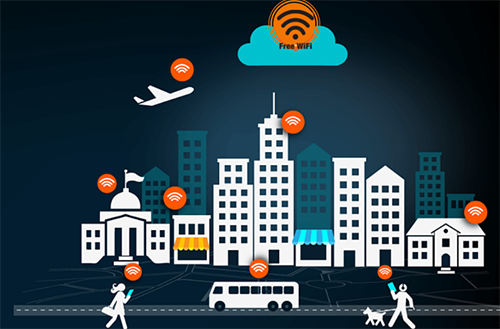
When your device notifies you that a hotspot with the SSID “Free Wi-Fi” is available, your response may be to connect quickly. However, you should hold off on that until you verify the network name. If you fail to do so, there is a chance that you may be connected to a hotpot setup by a malicious hacker, so they will be able to intercept your data.
2. Turn Off File Sharing
On your personal network, sharing files and printers is convenient. On a public Wi-Fi hotspot, it is safer for you to avoid using it.
3. Use HTTPS and SSL Whenever Possible
Some sites still use the unsecured HTTP protocol today. However, many widely visited sites, such as Facebook and Gmail, use HTTPS. If a site supports both protocols, always use HTTPS while you are on a public Wi-Fi network.
4. Use Two-factor Authentication
Add the two-factor authentication. It gives you an extra layer of security: after logging in with the correct username and password, you receive an additional code on your phone, which you must enter before you can access your account. Therefore, even if an attacker intercepts your data and obtains your login details, they would still need access to your phone before they could access your account.
5. Turn off Wi-Fi when it’s not in use
Set up a reliable provider on your device! Don’t forget to turn off the Wi-Fi connection every time you leave the place, and never save your username or password for any website or source.
So, we wish you luck!
Comments