Beginner’s Guide to Internet Privacy
Protecting your privacy is not a race with a clear finish line. Attack methods change, software develops vulnerabilities, and tools designed to protect information need ongoing maintenance. No product can guarantee protection against every threat, and a “secure” label is not a substitute for evidence about how a tool works and its limitations.
Rather than treating every headline as a reason to buy another service, start with what matters in your situation: the information you want to protect, who might seek access to it, and the consequences if they succeed. Those answers help determine which safeguards are appropriate and what trade-offs are reasonable.
The encouraging part is that you do not need to follow every product launch or learn every attack’s name. A useful foundation is to assess your risks, choose tools with transparent security practices, keep software updated, and revisit your choices as your circumstances change. The details evolve, but these principles provide a consistent starting point.
What is this guide?
In this guide, we will bring some clarity to the matter by explaining:
- What privacy is and how it is different from security and anonymity
- Why protecting privacy became a matter of such magnitude
- What are some of the basic steps that could be taken to make your online presence less visible
- What specific solutions are out there to provide you with the adequate level of protection
We will also point you to resources that can help you make informed privacy-, security-, and anonymity-related choices.
Privacy and Security
It’s important to distinguish between Privacy and Security as pertains to personal data. While both go hand in hand and are related to protecting information, there is an important difference that needs to be understood before we go any further. Security is about protecting data from unauthorized access.
Privacy is about data collection and use. Why is it important to understand the difference? Because when we say that an Internet product or service is “secure”, it does not necessarily mean that it is also the best in terms of protecting privacy.
A good example: Google Chrome is arguably the most secure popular web browser. On the other hand, privacy is not something that Google is rigorously trying to protect. Quite the opposite: privacy is the price you pay for using Google’s free services. In other words, as Apple’s Tim Cook colorfully put it, “You’re the product”.
There is a constant trade-off between convenience (or, in a business setting, productivity) and security: a more secure way of performing a certain task (such as creating different complex passwords for each of your accounts instead of using “password123” for all of them) almost always means that accomplishing it will be associated with extra effort and/or resources (juggling multiple passwords by memorizing them or investing in password management software).
A similar trade-off exists between convenience and privacy: you normally don’t have to pay anything to browse the Internet, but you are also leaving your personal information up for grabs for pretty much anyone who is interested (and, as we will discuss later, many are interested, many more than you think).
While the relationship between security and privacy is different in that more security does not necessarily mean more privacy, we often face a dilemma when entrusting our information to third parties: they promise to keep our data secure, but who are they sharing it with, either willingly or when forced to do so?
Privacy and Anonymity
This is another pair of terms that we can often see used interchangeably. They are, however, very different, and the difference is quite simple, really. Imagine a private balcony: it is private because no one but you can use it, but when you come out to this balcony, everyone can see that it’s you.
Apply this to Internet privacy: private browsing means no one can see your online activities, but it does not mean no one knows it is you browsing the web. This is what anonymity is for. Think of it as blinds for your private balcony.
In the context of online privacy and anonymity, it’s all up to you and your specific needs. You can have either or both, and later in this article, we will discuss some of the best ways to achieve the desired outcome.

The Price of Privacy
Privacy is about having a say in who can access information about you and how they use it. That information includes more than passwords or bank details: your browsing activity, purchases, and location can reveal interests, habits, and sensitive aspects of your life. Companies can combine those details into profiles used for advertising and other purposes, sometimes without your direct knowledge.
Data brokers make the risks especially clear. These businesses collect or acquire personal information and sell it to other organizations. In January 2025, the US Federal Trade Commission finalized an order restricting Gravy Analytics and its subsidiary Venntel from using or selling sensitive location data, including information about visits to healthcare facilities and places of worship. The FTC alleged that the companies collected and used location data without obtaining verifiable consent for commercial and government uses.
Government access and commercial tracking are therefore not entirely separate issues. Data gathered through smartphone apps can pass through brokers to private businesses or government customers. That does not mean every app tracks you or every agency has unrestricted access; it means the destination of your information may extend beyond the service you originally used.
Criminals pose a different risk. Phishing messages and fake websites try to steal personal information or money, while impersonation scams may begin with a convincing-looking bank security alert. People reported losing $3.5 billion to impersonation scams in 2025, according to the FTC – a measure of reported losses, not the full extent of fraud or losses attributable specifically to privacy breaches.
These risks do not require assuming the worst about every online service. They do make it worth asking practical questions: What information does a service collect? Why does it need it? Who receives it? The goal is not to disappear from the internet, but to make informed decisions about what you share and whom you trust.
Current Internet Privacy Rules
In the United States, internet privacy and net neutrality are different issues. Privacy concerns how companies collect, use, and share personal information. Net neutrality concerns how internet providers treat traffic. For example, whether they block a website, slow a competing streaming service, or charge for preferential delivery.
In January 2025, a federal appeals court struck down the FCC’s attempt to restore nationwide net neutrality rules, ruling that the agency lacked authority to regulate broadband providers as common carriers under existing law. State-level protections, including those in California and Washington, were not overturned by that decision.
Privacy rules govern how companies collect, use, and share personal information; net neutrality rules govern how providers handle internet traffic. Protections against blocking or slowing websites do not, by themselves, prevent a provider from collecting or sharing customer data.
What does internet privacy stand for?
Internet privacy concerns how your personal information is collected, used, and shared online, and how much control you have over those activities. It covers not just what you post, but also information websites and apps collect, such as your browsing activity, location, and purchases.
Privacy is not only about keeping information away from criminals. It also involves understanding how legitimate services use your data, whether for personalization, advertising, or sharing with other companies. Reviewing privacy settings, limiting unnecessary app permissions, and being selective about what you share can help reduce unwanted exposure.
What are the recurring risks of internet privacy?
Privacy risks include attempts to steal your information and less obvious ways that services collect or share it.
- Phishing: fake messages, websites, or QR codes that trick you into revealing passwords or financial details.
- Malware and spyware: harmful software that can steal information or secretly monitor your activity.
- Unwanted data sharing: apps may disclose sensitive information, such as health details, to advertising or analytics companies, even when users expect it to remain private.
Reducing these risks requires more than choosing a single privacy tool. Keep devices and apps updated, use unique passwords and multifactor authentication, review privacy settings, and verify unexpected requests before sharing information. These steps reduce exposure, but cannot guarantee complete privacy.
Internet Privacy and Security 101
Before we get into the nitty-gritty of privacy protection, let’s clear up three terms: threats, vulnerabilities, and risks. Understanding the difference helps you choose safeguards based on what could go wrong and how much it would matter.
- A threat is something that could cause harm, such as an attempt to steal your account credentials or access private information without permission. Criminals are potential sources of threats, rather than threats in themselves.
- A vulnerability is a weakness that enables harm, such as an unpatched software flaw. It gives an attacker an opening, but does not mean an attack will necessarily succeed.
- Risk considers both how likely something is to happen and how serious the consequences would be. Losing access to an account is a possible outcome; the likelihood and impact of that loss determine the risk.
You do not need to become a security professional to use this approach. Start with what you want to protect, consider what could expose it, and choose safeguards that address those weaknesses. The goal is to manage risk, not promise that every threat can be eliminated.
What Does Your Browser Know About You?
Quite a bit – but what it stores on your device is not the same as what websites can see. Browser data can include your browsing and download history, saved login details, autofill information, cookies, and temporary website files. These make browsing more convenient, but can also reveal personal information to someone with access to your device or account. Websites do not automatically get access to everything your browser stores.
Cookies and Other Tracking Tools
Cookies remember things such as your language preference, shopping cart, or login status. They are not inherently harmful, but some are used for tracking. When the same third-party service appears on multiple websites, its cookies can help link your visits across those sites, depending on your browser’s protections and settings.
Cookies are not the only tracking method:
- Tracking pixels are tiny embedded images that can report when a webpage or email loads. An email pixel loading does not necessarily prove that you read the message.
- Browser fingerprinting combines details such as your screen size, operating system, and browser characteristics to help recognize you – even after cookies are deleted.
What Helps – and What Private Browsing Actually Does
Use your browser’s tracking protections and review its cookie settings. For example, Firefox’s default protections restrict cross-site cookies and block known fingerprinting scripts. Clearing cookies can remove stored identifiers, but it may sign you out and does not erase information companies have already collected.
Private browsing, sometimes called incognito mode, mainly limits what the browser retains after the session ends. Cookies still work during the session and are discarded when all private windows close; downloaded files remain. It is useful for keeping a gift search out of your regular browsing history – not for becoming anonymous. Websites can still recognize you when you sign in, and private browsing does not hide your connection from your internet provider.
Metadata and ISPs
Private browsing can keep pages out of your browser history, but it doesn’t hide your internet activity from your internet service provider (ISP). Your ISP can still see some information about your connection, including the IP addresses you connect to, when you connect, and how much data you send or receive. Depending on your settings and the technologies involved, it may also see DNS requests or infer which services you’re using. With HTTPS, it generally can’t see the specific pages you visit or the information you enter on a website.
ISPs don’t normally need to install their own SSL certificates to monitor traffic. That would require a device or network configured to trust the certificate, as can happen on some managed work or school devices. For most people browsing the web, the more relevant issue is the metadata their ISP can observe.
Metadata means information about a connection rather than the content of a message. For example, an ISP may be able to see when a device connects to a service and how much data it exchanges, even when HTTPS protects the content. Traffic patterns can sometimes suggest whether someone is streaming or using a file-sharing service, though they don’t reveal every detail of the activity.
ISPs may also collect, use, or share customer data in accordance with their privacy policies and applicable laws. A 2021 Federal Trade Commission report found that several major US providers combined browsing and app-use data with information from other services for purposes including targeted advertising. Practices vary by provider, so check your ISP's privacy policy.
There is no single retention period that applies to all ISPs. How long data is kept depends on the provider, the type of information, and the applicable laws. Providers may also have to respond to valid legal requests for customer information.
The right privacy tool depends on what you want to protect. HTTPS encrypts the content sent between your browser and a website. A VPN encrypts traffic between your device and the VPN server, so your ISP can see that you’re using a VPN but generally can’t see your activity beyond that connection. Your VPN provider may then have access to some connection information, so choose one carefully. Tor routes traffic through several relays to help obscure its origin, but it doesn’t guarantee complete anonymity. We’ll look at these options in more detail in the following sections.
Encryption
Encryption is a broad and complex subject. Here, we’ll focus on the parts most relevant to online privacy and security: encrypted browsing and email. We’ll leave topics such as full-disk and file encryption for another discussion.
At its core, encryption converts readable information into an encoded form that should be unintelligible to anyone without the right key. Early examples of writing deliberately obscured to conceal its meaning date back around 4,000 years, although they were not encryption in the modern digital sense. The methods have changed considerably since then.
Greater computing power has helped make modern encryption practical, while also giving attackers more resources to test systems. Two common ways to attack a cipher are brute-force attacks, which involve trying possible keys, and cryptanalysis, which looks for weaknesses in the cipher. Attackers may also target the keys or the devices that store them.
Brute-forcing and Key Length
Picture a burglar with a huge key ring, trying each key in turn until one opens the door. That’s the basic idea behind a brute-force attack, also called an exhaustive key search: an attacker tries possible encryption keys until finding one that works.
With the burglar, a larger key ring means more keys to try. In encryption, the number of possible keys is determined by the key length, measured in bits. A 1-bit key has 2 possible values; an 8-bit key has 256. That set of possibilities is called the key space. DES, an older encryption algorithm, used 56-bit keys, giving it about 72 quadrillion possible keys.
The numbers grow quickly with longer keys. A 128-bit key has about 3.4 × 10³⁸ possibilities; a 256-bit key has about 1.16 × 10⁷⁷. AES, the widely used encryption standard, supports key lengths of 128, 192, and 256 bits. AES-128 has roughly 10²¹ times as many possible keys as DES-56.
So 56 bits may sound like plenty, but brute-force attacks have made it clear that it isn’t. In 1999, the Electronic Frontier Foundation and a distributed network of computers found the key to a DES-encrypted challenge in 22 hours and 15 minutes. NIST later withdrew DES as a standard because it no longer provided adequate security.
That doesn’t mean a longer key automatically makes every system safer: security also depends on the algorithm, its implementation, and how keys are generated and stored. But for modern encryption, AES-128 is already considered highly resistant to brute-force attacks; AES-256 offers a larger key space, though that extra length isn’t necessary in every use case.
Ciphers, NIST, and NSA
Researchers have published attacks on reduced-round versions of AES, but these have not provided a practical way to break full AES when it is properly implemented. NIST’s review found that, after decades of public analysis, AES had not been shown to be significantly weaker than expected.
That doesn’t mean every cryptographic standard or implementation is beyond scrutiny. NIST coordinates standards and tests implementations, but it did not develop every algorithm mentioned here: RSA was developed independently, while AES was selected through a public competition. The NSA has also participated in cryptographic standards work, including work connected to DES and the development of SHA standards.
One well-known controversy involved Dual_EC_DRBG, a random-number generator—not an encryption cipher. Researchers raised concerns that it could contain a backdoor. In 2013, Reuters reported that the NSA had paid RSA Security $10 million to make Dual_EC_DRBG the default in its BSAFE toolkit; RSA disputed the allegations. NIST reviewed the issue and removed the generator from its guidance in 2014.
Snowden-era reporting also raised questions about Microsoft’s cooperation with the NSA. Microsoft said it did not provide direct access to customer data or help break its encryption, and that it responded to specific legal demands.
These cases are reasons to scrutinize cryptographic standards, software, and companies’ practices. They are not evidence that AES itself has been compromised.
HTTPS and PFS
When we talk about encryption for web browsing, we’re mainly talking about TLS, the protocol used by HTTPS. (SSL is its outdated predecessor.) TLS encrypts data in transit between your browser and a website, helps prevent it from being read or altered along the way, and lets your browser check that the site’s certificate is valid for the domain you’re visiting. That confirms the site’s identity; it doesn’t prove the site itself is trustworthy. When you visit a site over HTTPS, your browser indicates that the connection is secure, although the exact display varies by browser.
Most web traffic now uses HTTPS, and major browsers can try to upgrade HTTP connections automatically. The HTTPS Everywhere extension mentioned in older guides has been retired because its functionality is built into major browsers. If a site still only offers HTTP, avoid entering sensitive information there. A link to an HTTP site on an HTTPS page doesn’t automatically make the current page unencrypted, but clicking it takes you to an unencrypted connection.
HTTPS isn’t flawless. In 2014, Heartbleed exposed a flaw in certain versions of OpenSSL, software used to implement TLS. The bug could let attackers read portions of a vulnerable system’s memory, potentially including private keys, session tokens, or user data. It was an implementation flaw in specific OpenSSL versions, not a weakness in HTTPS itself.
Perfect Forward Secrecy (PFS), also called forward secrecy, helps protect previously recorded sessions if a website’s long-term private key is compromised later. It does this by using temporary session keys that can’t be derived from that private key. PFS doesn’t protect against Heartbleed or other flaws that expose session keys or data from a system’s memory.
So, does encryption provide sufficient security and privacy? It’s an important protection for the content of your communications, but it doesn’t hide all metadata. Your ISP may still be able to see some connection details, such as the sites you connect to. A VPN encrypts traffic between your device and the VPN server, limiting what your ISP can see, but the VPN provider becomes another party to consider. We’ll discuss that in more detail in the following sections.
VPN
In this article, we will discuss commercial (or consumer) VPN services rather than corporate VPNs, which are used to ensure a secure connection to a company’s internal network from outside. While both are based on the same principle, their goals and implementations are vastly different, so we need to make the distinction clear before we go any further.
What is a VPN?
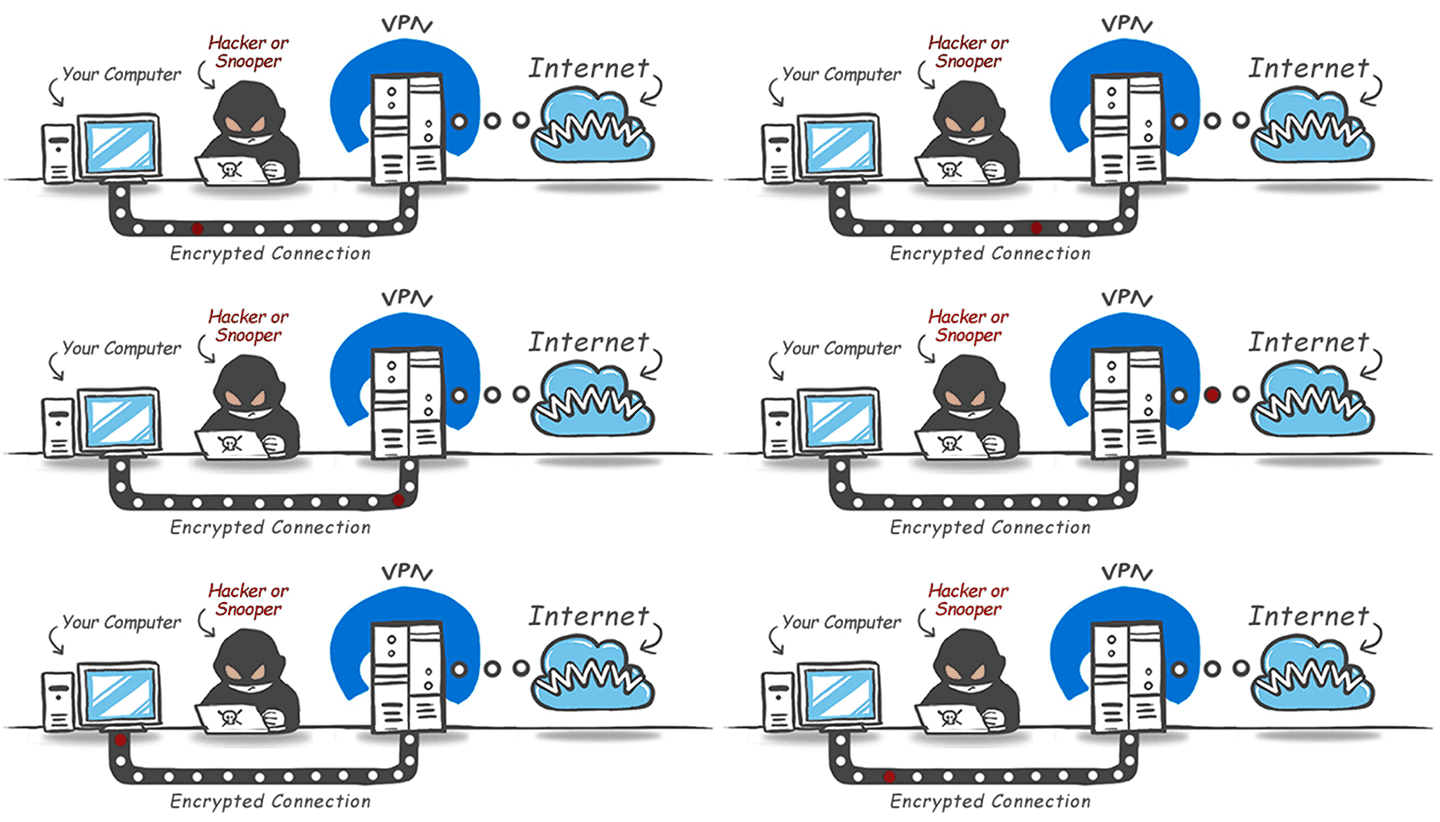
VPN stands for Virtual Private Network. A VPN creates a connection between your device and a VPN server over another network, usually the internet. With a consumer VPN, traffic sent through the VPN connection is encrypted between your device and that server.
The term “VPN tunnel” is a useful analogy, but the traffic isn’t invisible to everyone else. Your internet provider can generally see that you’re connected to a VPN, while the VPN provider handles your traffic as it leaves the server. Websites you visit see the VPN server’s IP address. A VPN can add privacy and security, but it doesn’t make you anonymous.
Why Use a VPN?
A VPN can add privacy and security to your internet connection, and it can help you connect through servers in other countries. Here’s what that means in practice.
Privacy
A VPN encrypts traffic between your device and the VPN server. Your ISP can see that you’re connected to the VPN, along with connection details such as timing and data volume, but it generally can’t see the websites you visit through the tunnel. That doesn’t mean the information disappears: the VPN provider handles your traffic, so its privacy practices matter.
A VPN can also make it look as if you’re connecting from the server’s location. This may help you access services available in that region, such as streaming the Italian Grand Prix from Estonia. Streaming services may restrict VPN connections, though, so access can vary.
Security
A VPN encrypts the connection between your device and its server, adding protection on networks such as public Wi-Fi. It can help keep people on the same network from viewing or tampering with unencrypted traffic. Most major websites already use HTTPS, which protects the content you exchange with them; a VPN adds another layer between your device and the local network.
Anonymity
A VPN replaces your public IP address with the VPN server’s address, which can make it harder for websites to link activity to your home connection. It doesn’t make you anonymous: accounts, cookies, and other identifying details can still reveal who you are. A VPN also doesn’t automatically block ads or stop advertisers from tracking you.
A few things to keep in mind
- A VPN may affect your speed. Your traffic takes an extra route through a VPN server, so speed can drop, especially if the server is far away or busy. The difference varies. If you only need to change your apparent location for a streaming service and don’t need the VPN’s privacy features, a Smart DNS service may be an option. It doesn’t encrypt your traffic or replace your IP address.
- Your VPN provider handles your traffic. Your ISP can see that you’re connected to a VPN, as well as connection details such as timing and data volume. The VPN provider can see some connection metadata, though HTTPS still protects the content of most web traffic. Check the provider’s privacy policy and reputation before choosing a service.
- Free VPN plans vary. Some are legitimate, but may limit data, speed, server locations, or features. Paid plans often offer more options, but price alone doesn’t guarantee better privacy.
- A VPN doesn’t make you anonymous. Websites may still identify you through accounts, cookies, or other details. Your VPN provider may also hold account information and see your connecting IP address, depending on its systems and policies. A VPN is a privacy tool, so consider what information you want to protect and from whom.
How to Select a VPN Provider
Start with what you need a VPN for. Streaming, torrenting, travel, and everyday privacy can call for different features. Our guides to VPNs for streaming and VPNs for torrenting can help narrow the options.
When comparing providers, consider:
- Privacy practices. Read the privacy policy to see what data the provider collects and retains. Look for independent audits, but remember that a “no-logs” label alone isn’t proof of how a service operates. A VPN also shifts some trust from your ISP to the VPN provider.
- Security features. Look for modern VPN protocols, a kill switch, and DNS leak protection. Don’t judge security by encryption key length alone.
- Servers and use cases. Check that the provider has locations where you need them and supports P2P if you plan to torrent. A high server count doesn’t guarantee better performance.
- Apps and support. Make sure the service supports your devices, is straightforward to use, and offers help if you need it.
- Price and terms. Compare the total cost, renewal terms, device limits, and any trial or refund conditions. Paying with cryptocurrency doesn’t guarantee anonymity.
Choose the service that best fits your needs, then review its settings before you connect. A VPN can add privacy and security, but it doesn’t make you anonymous.
How to use a VPN?
Once you’ve chosen a VPN provider, follow these steps to get started:
- Read the provider’s terms of service and privacy policy to understand what data it collects and how it handles it.
- Choose a plan that suits you. Check whether the provider offers a free trial or money-back guarantee; terms vary by service.
- Download the official VPN app for your device and sign in. Contact customer support if you need help with setup.
- Choose a server and connect. To appear to connect from another country, select a server in that country. This may help with region-specific services, though access isn’t guaranteed.
- Check the provider’s FAQ or contact support if you have questions or run into a problem.
Tor
Tor (short for “The Onion Router”) is designed to help people browse with greater privacy. It routes traffic through a circuit of three relays in the Tor network. Each relay knows only the previous and next relay in the circuit, not the full route. The data is encrypted in layers, and each relay removes one layer to learn where to send it next.
When you visit a regular website, the final relay, called the exit relay, connects to it. The website sees the exit relay’s IP address rather than yours. If the connection to the website isn’t encrypted with HTTPS, however, the exit relay may be able to read or alter the traffic. HTTPS protects the data in transit between your browser and the website. Tor improves privacy, but it can’t guarantee anonymity: signing in or sharing identifying information can still reveal who you are.
Some people route their VPN connection through Tor so the VPN provider sees the Tor exit relay’s IP address instead of their own. That doesn’t make them anonymous: the provider may still have account or payment details, and it handles traffic as it leaves the VPN server. Combining Tor and a VPN can also weaken privacy if configured incorrectly, so the Tor Project generally advises against it unless you understand the setup. Bitcoin payments don’t guarantee anonymity either.
Tor can be slower than a direct connection because traffic passes through several relays, and some websites block Tor connections or require additional verification. Tor use is legal in many countries, but local rules vary. People also use it to reach websites and information that are blocked in their region.
Bitcoin
Like traditional currencies, Bitcoin can be used to pay for goods and services. It operates on a decentralized network without a bank processing each transaction, but that doesn’t put it beyond government regulation. Bitcoin is also pseudonymous, not anonymous.
Bitcoin was introduced in 2009 by a developer using the name Satoshi Nakamoto. A wallet manages the keys used to send and receive Bitcoin. You can create a self-custody wallet without providing your name, but exchanges and other services may ask for identity information.
Bitcoin transactions are recorded on a public ledger. Addresses don’t automatically reveal their owners’ names, but transactions can sometimes be linked to people through exchanges, purchases, and other information. To reduce address-linking:
- Use fresh addresses. Reusing an address makes it easier to connect payments. Many modern wallets generate new receiving addresses automatically. This improves privacy, but doesn’t make transactions anonymous.
- Don’t assume mixing services make payments untraceable. They may try to obscure transaction links, but they can’t guarantee anonymity and may add fraud or legal risks.
Bitcoin is not the only cryptocurrency, and some VPN providers accept other coins. Payment options vary, so check the provider’s current list. Some services also accept cash by mail; for example, Mullvad currently lists this as an option. A payment method alone, including cryptocurrency or cash, can’t guarantee anonymity.
Other Privacy and Security Measures
This article can only cover a few ways to improve your online privacy and security. So far, we’ve learned that:
- Start by identifying what you want to protect and who you want to protect it from.
- Encryption can protect data in transit or at rest, depending on how it’s used. Use tools that encrypt the information you want to keep private.
- Smart DNS can help with some location-based restrictions, but it doesn’t encrypt your traffic. A VPN encrypts traffic between your device and the VPN server, while Tor routes it through multiple relays to help protect your privacy. These tools work differently, and none guarantees anonymity.
- Paying with cryptocurrency, cash, or a prepaid card may reveal less information than some other payment methods, but none guarantees anonymity.
Next, we’ll look at browser privacy and security, encrypted email, malware protection, and mobile device security. We’ll keep the mobile section brief, since the topic deserves a guide of its own.
Browser Privacy and Security
Even if you take steps to protect your privacy online, browser fingerprinting can help websites recognize the same browser across visits. It combines details about your browser and device, such as operating system, language, time zone, screen size, fonts, and graphics features. Some details are shared automatically; websites can use scripts to collect others. A fingerprint may help distinguish your browser, though it doesn’t necessarily reveal your real identity.
Fingerprinting tests such as AmIUnique and EFF’s Cover Your Tracks show some of the information a website can collect. The results are only a snapshot, and using a test site means sharing fingerprint data with that site.
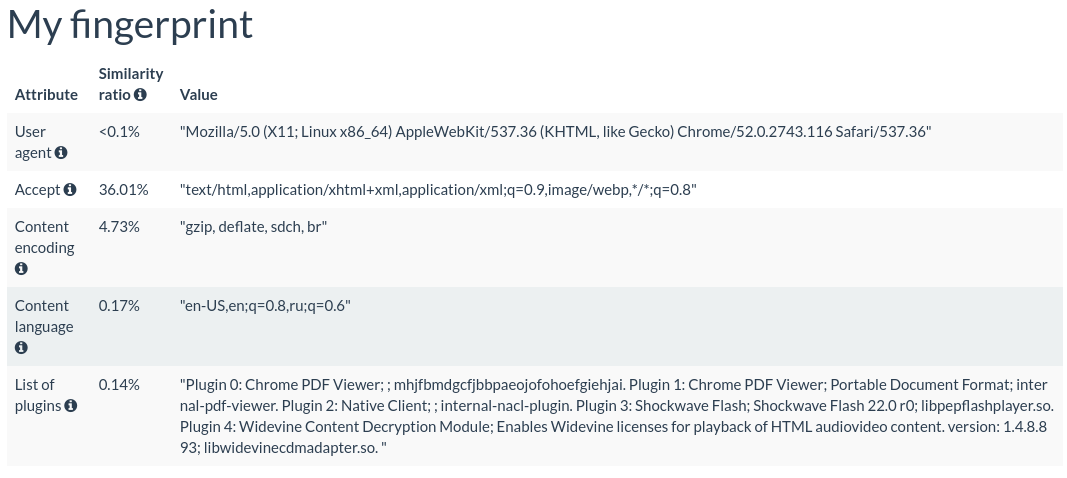
Fingerprinting is difficult to avoid completely. A practical step is to use a browser with built-in tracking protections and avoid making lots of unusual changes to its settings, which can make your configuration stand out. Tor Browser is designed to reduce fingerprinting by making users’ browser characteristics more alike. The Tor Project advises against adding extensions to it, since they can make its fingerprint more distinctive or interfere with its protections.
For everyday browsing, keep your browser and extensions updated, and install only extensions you need and trust. Script-blocking tools can limit some tracking techniques, but they may also break website features. Firefox and other browsers offer built-in tracking protections, including measures aimed at fingerprinting; stricter settings may affect how some sites work.
Next, we’ll look at browser extensions and other tools that can strengthen privacy and security.
Browser Extensions
Extensions can block ads, trackers, or scripts, but they can also affect your browser’s fingerprint. Install only the ones you need, and get them from official browser stores.
- uBlock Origin blocks ads, trackers, and other unwanted requests. Its full version works best in Firefox. Chrome users can install uBlock Origin Lite, a separate version built for Chromium’s current extension platform; the full version is no longer available in the Chrome Web Store.
- Disconnect Private Browsing blocks many third-party tracking requests. It’s available for current desktop versions of Chrome, Firefox, Edge, and Opera, but it isn’t designed to block all ads.
- HTTPS-Only mode: HTTPS Everywhere, the extension formerly recommended here, has been retired. Use your browser’s built-in HTTPS-Only or secure-connection setting instead, where available.
- NoScript lets you control which websites can run scripts. Blocking scripts can improve protection against some web threats, but it may also stop parts of websites from working. NoScript is available for Firefox and Chromium-based browsers.
- Privacy Badger, developed by the Electronic Frontier Foundation, blocks third-party trackers. It’s available for several desktop browsers, including Firefox, Chrome, Edge, Safari, and Opera.
These extensions offer overlapping protections, so you don’t need to install all of them. Keep your browser and chosen extensions up to date.
Secure Email
Email remains widely used, but standard email was not designed to provide end-to-end privacy. Providers have added security measures over time, yet ordinary email still does not guarantee that only the sender and recipient can read a message.
HTTPS or TLS can encrypt a connection between your device and your email provider, and between mail servers that support it. This protects messages while they travel over those connections, but it doesn’t necessarily stop the providers handling the message from accessing its contents. A VPN protects traffic between your device and the VPN server; it does not provide end-to-end email encryption.
For that, the message itself needs to be encrypted before it leaves your device and decrypted by the recipient. Standards such as OpenPGP and S/MIME support this, but the sender and recipient need compatible tools and a way to exchange or verify encryption keys.
The main difficulty is coordination: both parties need to use compatible encryption, and you need to make sure you have the recipient’s correct public key. If a sender doesn’t encrypt a message, end-to-end encryption can’t protect it from that sender’s email provider.
Encryption also doesn’t hide all email metadata. Information such as sender and recipient addresses, timestamps, and, in common OpenPGP implementations, the subject line may remain visible to email services.
To protect email, use TLS for connections and end-to-end encryption when you need to protect message contents from the providers handling them. Keep in mind that each approach protects different parts of the communication.
Anti-malware
We use the term “anti-malware” rather than the more familiar “antivirus” because viruses are just one kind of malicious software. Other types include worms, Trojans, ransomware, spyware, and rootkits. Modern security products generally aim to detect a range of these threats, not just viruses.
Security software is useful, but it cannot catch everything. New or highly targeted malware may evade detection, so anti-malware works best as one part of a broader set of precautions. Here are some practical steps:
- Keep your operating system and apps up to date. Updates often fix security flaws that attackers could otherwise exploit. Choose an operating system that still receives security updates; switching to macOS or Linux alone does not guarantee greater safety.
- Use reputable anti-malware software and keep it updated. Windows 11 includes Microsoft Defender Antivirus, which provides real-time protection. Microsoft says most users don’t need to install another real-time antivirus product. Whichever software you use, keep automatic updates and real-time protection enabled.
- Be cautious with links, attachments, and downloads. Check unexpected messages before opening links or files, and avoid running software from sources you don’t trust. Don’t enable macros or other active content in a document unless you know it’s safe.
- Back up important files. Keep a backup that malware on your device cannot easily alter or delete. A virtual machine can be useful for testing unfamiliar software, but it isn’t a substitute for updates, backups, or careful browsing.
These steps won’t eliminate every risk, but they make it harder for common malware to infect your device and give you a better chance of recovering if something goes wrong.
Mobile Privacy and Security
Mobile devices have some privacy risks that are less common on desktop computers, including location data and the permissions apps request. That doesn’t make them inherently less secure, as the risks depend on the device, its settings, the apps you install, and how you use it. A few useful steps can help protect both your privacy and your data:
- Choose a browser that suits your needs. Firefox is available for Android and iOS, but its add-ons are supported on Android, not iOS.
- Use reputable browser extensions or content blockers where supported. Firefox for Android supports extensions such as uBlock Origin. On iPhone and iPad, Safari supports content-blocking extensions from the App Store; Firefox for iOS does not support its usual browser add-ons.
- Consider a VPN, especially on public Wi-Fi. A VPN encrypts the internet traffic routed through its tunnel between your device and the VPN server. It doesn’t cover every kind of phone activity, such as ordinary cellular calls and texts. BestVPNRating has guides to VPNs for Android and VPNs for iPhone.
- Use your phone’s built-in security and privacy settings. Set a passcode, install system updates, and review which apps can access your location, photos, microphone, and other sensitive information. Apple provides controls for reviewing and changing location access in iOS.
- Use the protections available for your operating system. On Android, keep Google Play Protect enabled; it checks apps for potential threats. iOS uses its own built-in security protections, so traditional antivirus apps should not be assumed to scan an iPhone in the same way desktop antivirus software scans a computer.
- Choose an end-to-end encrypted messaging app for private conversations. Signal’s messages and calls are end-to-end encrypted. You can also link Signal Desktop to your phone; it is a separate desktop app, not a Chrome extension.
Conclusion
The more digital technology becomes part of everyday life, the more valuable our privacy is – not only to us but also to governments, advertisers, scammers, and others who may seek access to our information.
Protecting your privacy and security doesn’t have to feel overwhelming. Start by considering what you want to protect and from whom, then choose tools and habits that fit those priorities.
Comments